TL;DR — We just launched Application Metrics, a new way to track critical signals in your application. It lets you understand your users with context and catch problems before they become errors.
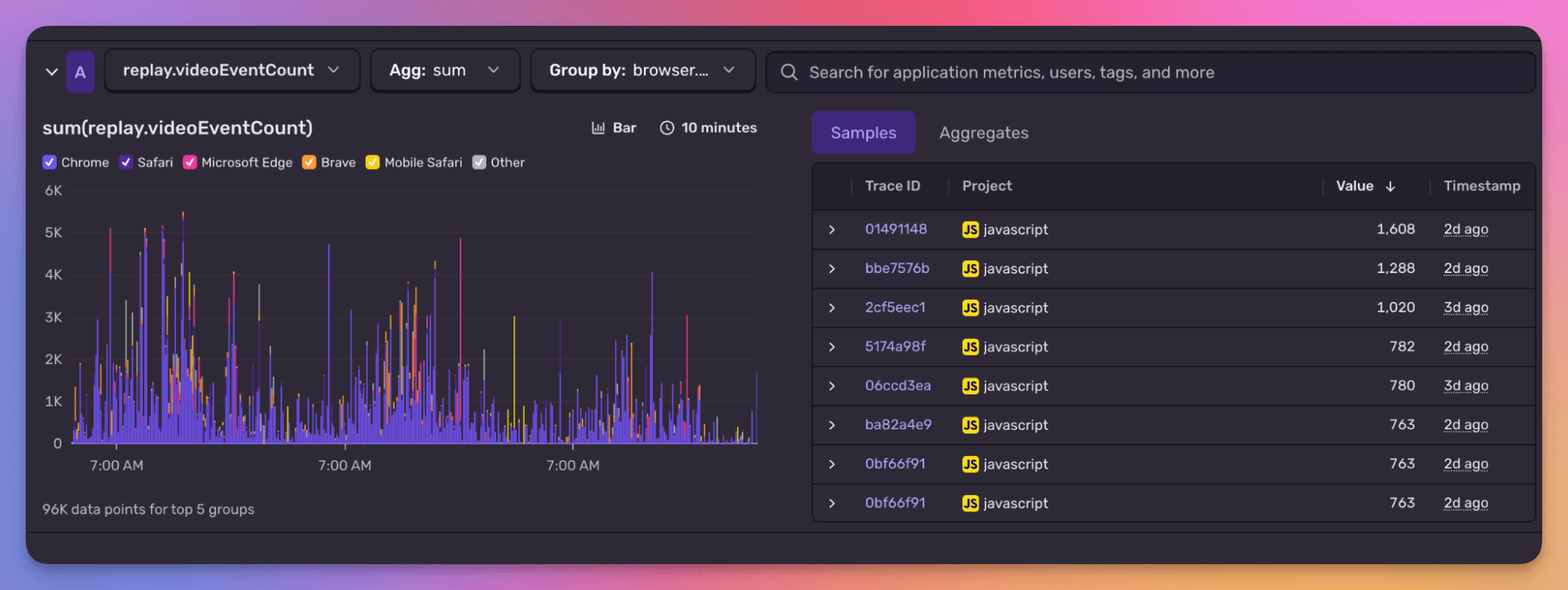
A few weeks ago we had a bug with Session Replay. Replays were failing in some browsers once more than 1,000 video segments loaded. We had no idea how often it happened or who was hitting it, and because the failure didn’t always produce an error, we had no way to find affected users to reproduce it.
Before, we could’ve answered this with spans or logs, but it’s clunky — spans are often sampled, so you can miss outliers; logs are less structured and tend to change over time. Both are better suited for investigation. Metrics are ideal for tracking known behaviors over time. So we set up a metric in the Sentry SDK with a user and provider attribute, filtered for sessions over 1,000 segments, and had a repro case in minutes.
That’s the job Application Metrics is for: track the signals you care about, and attach the context you might need later. When something breaks, the data is already there waiting.
Full events, not pre-aggregated counters
Metrics tools designed for tracking infrastructure telemetry tend to aggregate, stripping out information like user, IP address, and region. They’re just a counter.
Sentry’s Application Metrics stores full events, including high-cardinality fields like user. So you’re able to ask not just “was the checkout experience slow in my application?”, but “was the checkout experience slow for users on the east coast?”, or “was a specific user’s scheduled job causing a queue backlog?”
Same SDK, one line of code
If you’re on a recent Sentry SDK, metrics are already enabled. No new dependencies or sidecar — just one more line.
There are three types you’ll reach for most:
Counter — increment a number each time something happens. Think payment.declined, search.zero_results, or email.failed. Good for tracking rates and totals you want to alert on.
Distribution — record a value each time something happens, then ask questions about the spread. How long did that job take? How many items were in the queue? Use this when the average isn’t the whole story.
Gauge — track a current value over time. queue.depth, cache.size, active.connections. The number you’d want on a dashboard.
You can attach attributes to all three. That’s where Application Metrics differs from many infrastructure monitoring tools, which pre-aggregate and strip context. When you attach user.id, region, or projectId, the event is stored with that context intact — so when a distribution spikes, you’re not just looking at a number, you’re looking at a number tied to a specific user, in a specific region, on a specific project.
Click a spike, see the trace
By storing full metrics events — including the trace ID — metrics become part of a broader trace-connected debugging workflow.
When a metric reaches an unexpected threshold (a background job backing up with unsent emails; a UI component taking painfully long to load) you can jump from that metric to traces, logs, and errors, and get a full picture of what actually went wrong around the time your pager went off:
Is a 429 error happening in a loop at the same time that a distribution measuring React component load times spikes?
Is an upstream email service running slow at the same time that a gauge measuring queue depth increases?
How we actually used this to find a Session Replay bug
To investigate the Session Replay problem, we began by adding a distribution that tracked the number of video segments loaded. We included the high-cardinality projectId attribute.
Here’s the code we added to start tracking video segments in replays:
We attached replayId and projectId as attributes on the scope so we could isolate high event counts to specific projects and replays. Given that we were having trouble reproducing the problem, this would help us catch the issue red-handed, tracing it back to a specific organization.
With that in place, we quickly learned two things:
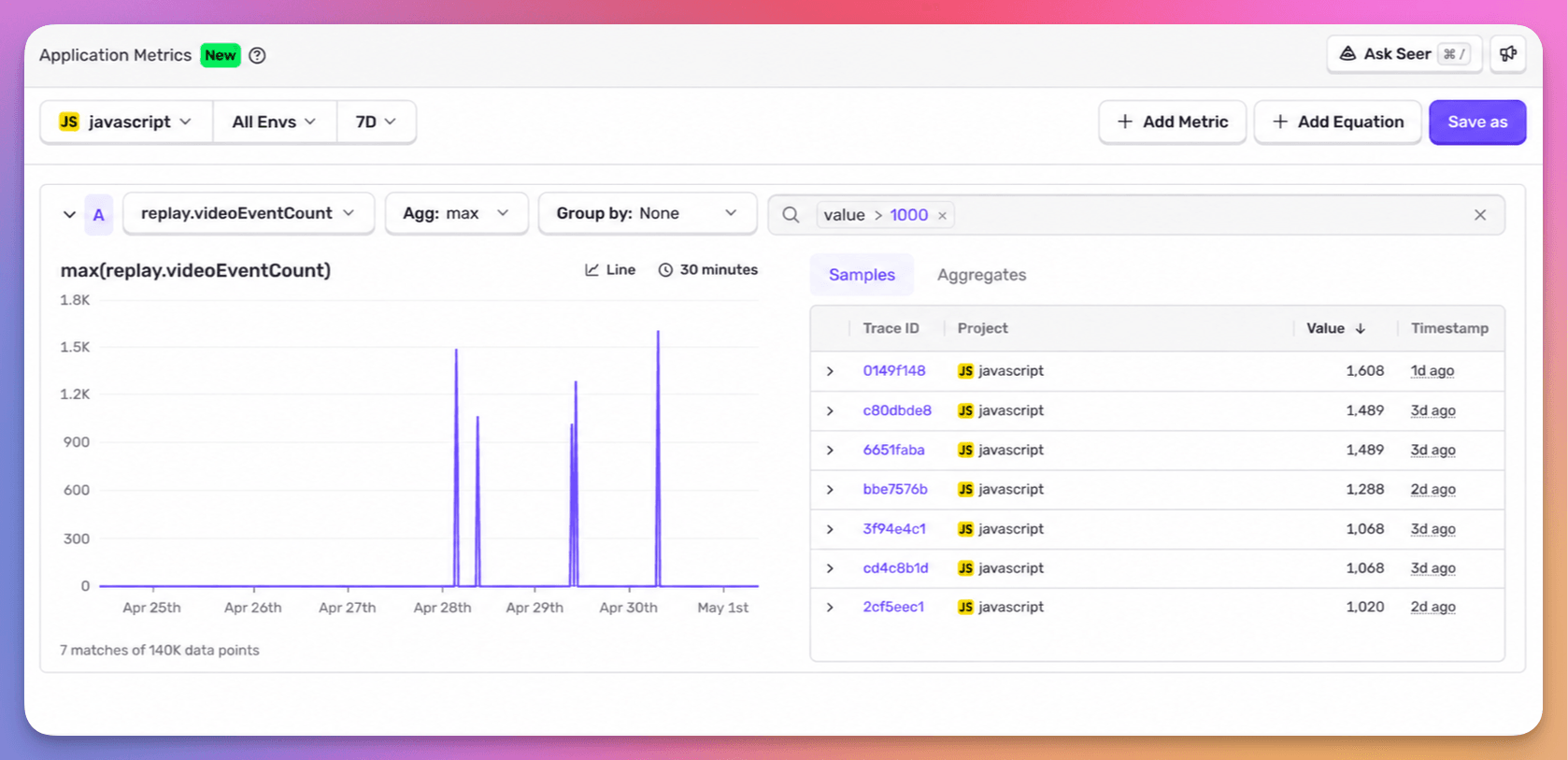
The issue was rare — just 7 occurrences in the past week.
We had the exact users affected.
From there, we could trace those sessions, reproduce the issue, and fix it.
Because each metric event carries a trace ID, we could go further. We added targeted logs to see exactly what the user was doing when >1,000 frames loaded — were they scrubbing the video, loading many videos in succession, etc. Next time we saw a replay.videoEventCount over 1,000, we jumped to the connected trace, saw the log lines, and had the context to fix the bug.
Metrics vs. everything else
Metrics aren’t a replacement for errors, traces, or logs. They fill a specific gap: tracking interesting, well-understood events in your application with high fidelity.
Not every event needs to be a metric. Logs are great during investigation. But when you find a signal you care about long-term — something that tracks application health — turn it into a metric.
Good candidates: business KPIs tied to code execution (payment.declined, search.zero_results), application health indicators (job.retried, email.failed), resource utilization (queue.depth, cache.hit_rate), and success/failure rates you want to alert on.
Not the right fit: infrastructure metrics like CPU and memory (use your infra tool), forensic debugging (use Sentry Logs), or request-level performance and connectivity (use Sentry Tracing).
Start with the metric your team checks first
Every Sentry plan comes with 5GB of Application Metrics. If you’re on a recent SDK version, you already have access.
Pick the one signal your team reaches for first when something goes wrong. Maybe it’s checkout.failed, maybe it’s queue.depth, maybe it’s deployment.duration. Instrument it, attach the attributes you’d want to filter on — user, project, region, whatever matters for that metric — and set an alert threshold.
When it fires, click through to the trace, find the context around the spike, and fix it.
The all-or-nothing sendDefaultPii boolean is going away. dataCollection replaces it with a dial for each category of data, so you can keep the headers you debug with and drop the values you would rather not store.
A full roundup of everything that shipped for Sentry Logs this summer — log pinning, overhauled exports, chart enhancements, terabyte-scale search, and a pile of usability fixes.
A stack trace tells you where your game died, not why. Session Replay for the Sentry Unreal Engine SDK attaches the last few seconds of gameplay to every crash report so you can watch what actually happened.