Your Unreal game can ship with zero errors and still not feel great. Stutters during combat, a frame-rate cliff on the big boss, rubber-banding in multiplayer, none of it shows up as a crash and none of it shows up in Sentry, leaving you without any visibility into what your players are actually experiencing in the wild. Well, until now.
Unreal Engine already gives you plenty of tools to measure game performance and collect runtime stats, but all that data stays on the dev’s machine.
The Unreal SDK’s new automatic performance metrics feature closes this gap by piping FPS, frame time, network health, and other common game telemetry straight to Sentry, so your team gets actionable insight into where performance breaks down, on which hardware, for which players. Pair it with Release & Health and you can watch the performance impact of each release land over time.
A quick note before we dig in: every gamedev has used a profiler at some point. Automatic performance metrics are a different-but-related tool, both go after the same problem at different layers: metrics find where the game is slowing down, profiling explains why.
What Sentry now tracks
Currently, Unreal SDK auto-instruments metrics for several key areas that impact overall performance including frame time, network and game-specific stats.
Frame time
The most direct read on whether your game feels responsive. Frame times tell you “how long the engine spent on each frame”; breaking it down by thread tells you which subsystem is the bottleneck.
Average FPS
Total frame time
Game thread work time
Render thread work time
GPU frame time
Comparing game thread vs render thread vs GPU time is the classic way to tell whether you’re CPU-bound or GPU-bound and which team (gameplay, rendering, content) owns the fix.
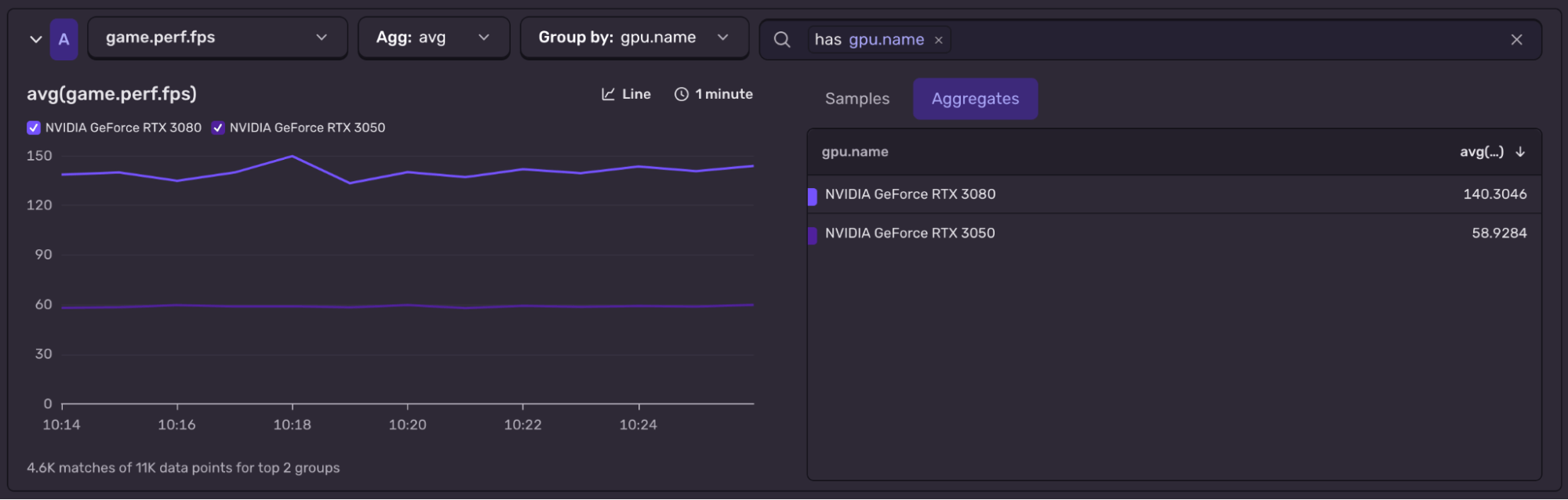
FPS metric example (grouped by GPU)
Network insights
Multiplayer performance lives or dies by connection quality, and crash reporting can’t see any of it. These metrics tell you whether packet loss, latency or bandwidth starvation is quietly degrading the experience.
Incoming/outgoing bandwidth
Packet throughput and loss
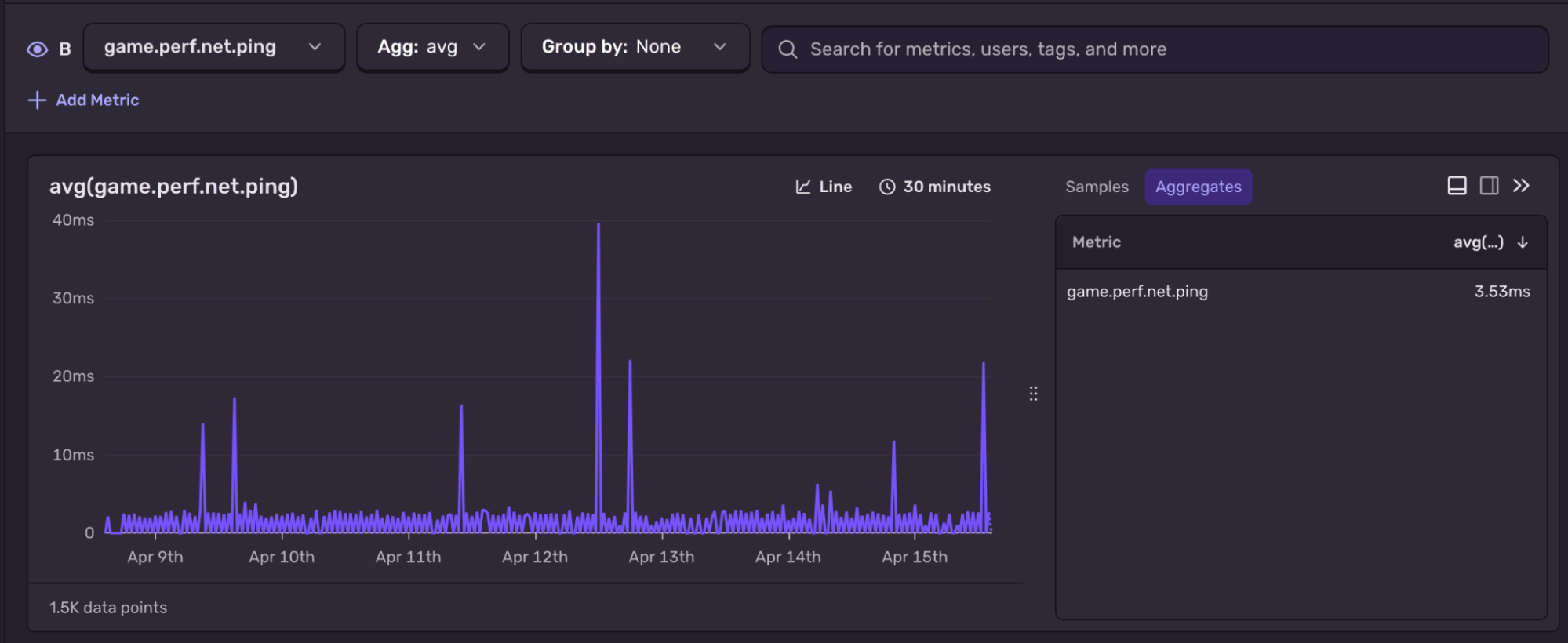
Client ping and jitter
Active connection count
Server builds additionally get per-client ping averages, per-client bandwidth and saturated-connection counts for load-shedding analysis (see the full list of network metrics).
These metrics only exist during active multiplayer sessions. Singleplayer games without networking emit nothing here and some values are client-only (ping, jitter) or server-only (active clients, saturation).
Ping metric example
Game stats
A small grab-bag of engine-level signals that often explain hitches the frame-time breakdown alone can’t.
Number of active UObjects
Physical memory used by the process
Duration of the blocking GC pause
A UObject count that climbs steadily between GCs is a classic leak signature and correlating it with GC pause duration often reveals exactly when a leak starts hurting player experience.
Unlike frame time, these are sampled on a slower cadence: memory and object count every 60 seconds, GC pause emitted after each collection cycle. Values change slowly enough that per-frame resolution would be wasted throughput.
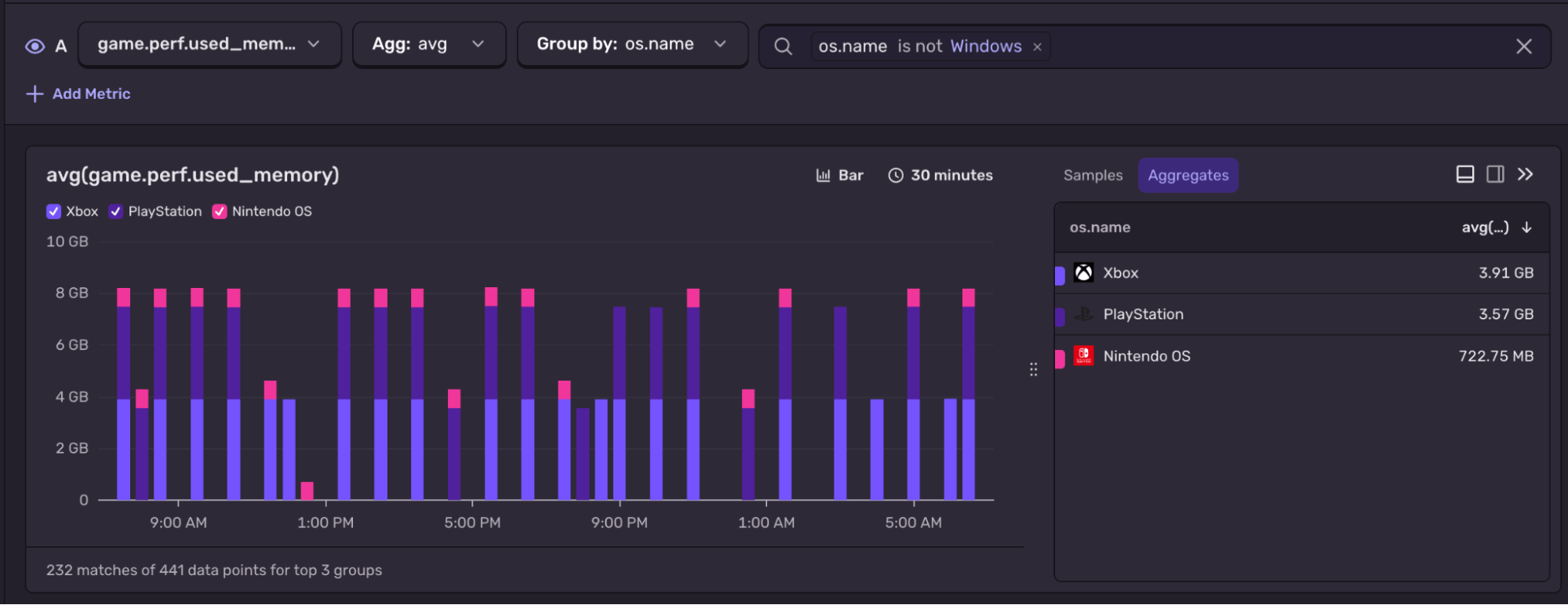
Used Memory metric example (grouped by platform, console-only)
Sampling performance metrics
Emitting a metric every frame would be an overhead on its own. To avoid that, the SDK samples at a fixed interval, emitting one data point every N frames for per-frame metrics like frame time and FPS, and every N seconds for slower-changing ones like memory use or network health. The defaults are conservative and tunable per project:
~2 samples per second for frame time at 60 FPS
Every 10 seconds for network
Every 60 seconds for game stats
On any single client this is sparse, a hitch on a non-sampled frame won’t be captured. But across many players the aggregate distribution converges on the real picture. You want to know “what’s the p95 frame time on RTX 3050 hardware?”, not “what did frame #47312 look like on dev’s laptop.” If you need tighter resolution simply dial the interval down.
Metrics attributes
An aggregate FPS number on its own doesn’t tell you much. What makes it useful is breaking it down: per GPU, per platform, per level. Every automatic metric is tagged with context attributes so you can do exactly that:
GPU model name
Number of CPU cores
Total physical RAM
Screen resolution
Current game map/level name
Metrics also carry the release version, operating system, and crucially the trace ID of whatever was happening when they were emitted. That last one is what separates metrics-in-Sentry from a standalone monitoring tool: spot a frame-time spike in the dashboard, click into the sample and you land in the full trace for that moment alongside any errors and spans captured with it.
For example, group FPS (game.perf.fps) by GPU (gpu.name) and the answer to “what FPS do RTX 3080 players actually see versus RTX 3050?” is one query away. Swap the grouping to OS (os.name) and you can compare memory footprint across Xbox, PlayStation and Switch.
Try it out and tell us what’s next
Automatic performance metrics are enabled by default in Unreal SDK 1.11.0. See the Unreal SDK metrics docs for more on engine-version requirements and advanced configuration. Automatic metrics work on desktop, consoles and Android (with iOS support coming soon).
Ship a build with automatic performance metrics enabled and let it run for a few sessions, that’s often enough to see whether hardware segmentation, frame-time percentiles or network health are already surfacing something worth fixing.
And since the feature is still experimental, what gets measured next is up for grabs. If there’s a signal you wish we were capturing, open an issue on the Unreal SDK repo, as that’s the best way to shape where this goes.
Sentry's Flutter SDK 10.0 makes streaming traces the default, fixes crash-free rate accuracy for unhandled errors, and adds dedicated app startup traces on Android and iOS.
The OpenTelemetry instrumentation packages needed a Node module loader, a package.json file, and a mutable exports object. v11 replaces all of that with a source transform and diagnostics channels, so tracing now works on Cloudflare Workers, Bun, Deno, and bundled server deployments.
With Unreal Engine 5.8, your coding agent can drive the editor through Unreal MCP. The Sentry plugin adds tools and skills so it can set up Sentry, upload debug symbols, and root-cause crashes for you.