You know the drill: a crash report lands in your queue with a pristine stack trace pointing at some innocent-looking function and absolutely no clue about what the player was actually doing. Were they mid-boss-fight? Alt-tabbing during a loading screen? Standing perfectly still in the tutorial? QA can’t repro it, the player’s bug report says “game crashed lol,” and you’re left staring at a callstack playing twenty questions with a core dump.
Stack traces tell you where the code died but not always why. Since games tend to be much less deterministic than typical desktop or mobile apps, the “why” often lives in the seconds before the crash.
That’s exactly the gap Session Replay fills. With its new Session Replay support, the Sentry SDK for Unreal Engine can now continuously record the last several seconds of gameplay and attach that clip to the crash report. When the crash lands in Sentry, so does the footage, allowing you to watch what the player saw, right up to the moment things went sideways.
What you get with Session Replay
When a crash with a replay arrives, it shows up on the Replays page linked to the crash event as a playback with the actual rendered frames of your game and a scrubbable timeline of everything important that was going on along the way.
The panels next to the player are where the debugging happens. Alongside the footage and an AI replay summary, each replay gives you:
Tags & context - the answers you’d normally have to ask the player for: OS and version, release, crash type, region, etc.
Breadcrumbs - errors, gameplay events, and your own custom breadcrumbs on a timeline synced with the video.
Logs - the game’s log output timestamped against the video.
Trace - the spans leading up to the crash, linked by a shared trace ID. If the crash involves your backend, the server-side spans of the same trace are accessible from here as well.
Looking at the example above, those things tell the full story: three seconds in, an ensure fires because a checkout HTTP request came back invalid; the player reaches level 2, picks the “Wrath” attack modifier, and at 00:22 - fatal crash in ASentryTowerTurret::Shoot. That’s a reproduction script, handed to you by the crash itself.
In fact, you don’t even have to leave the crash to start watching. The replay is embedded right on the crash event page, so triaging an issue can start with a quick glance at the last few seconds of gameplay. If that glance raises questions, the full replay page is one click away.
How it works
Earlier experiments with replay capturing in the Unreal SDK leaned on platform vendor features (e.g. GDK’s game DVR on Xbox). That works, but every platform behaves differently and some can’t ship at all.
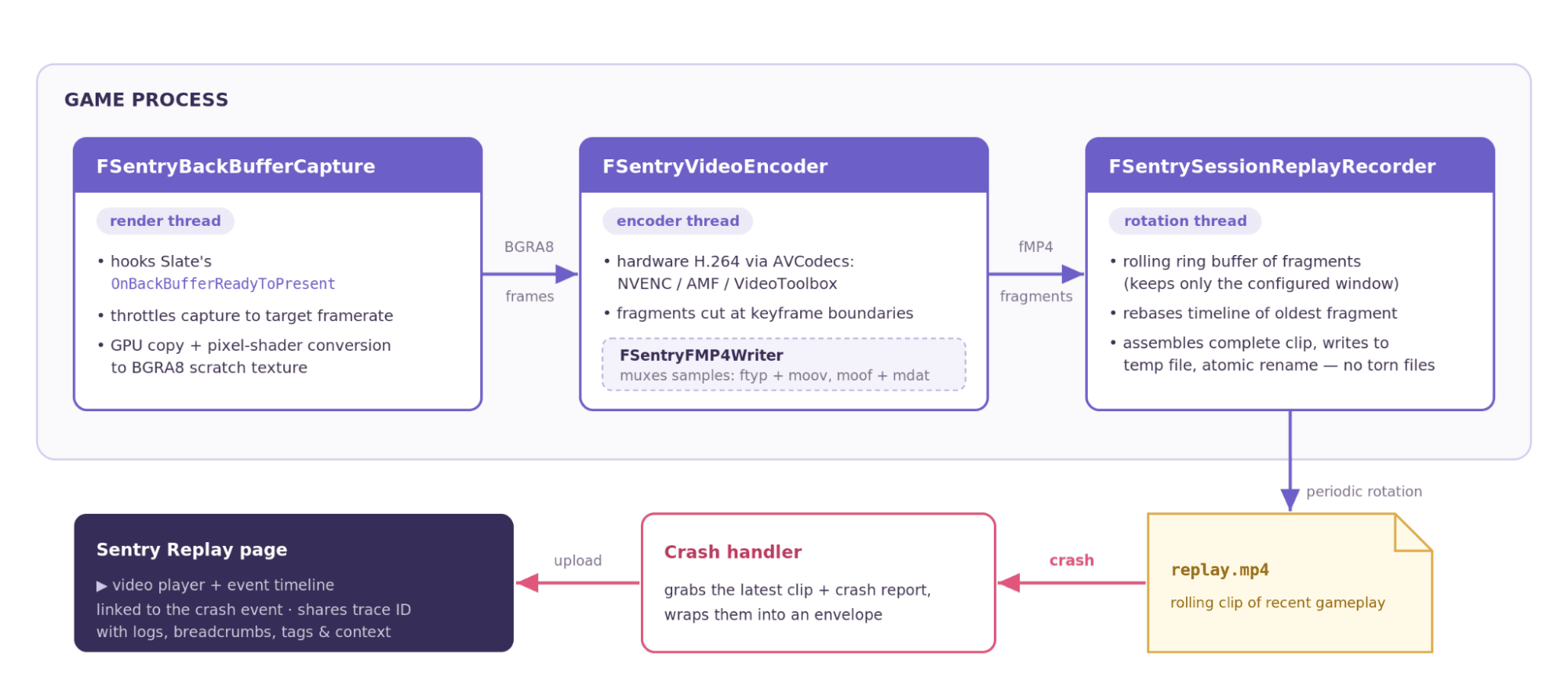
For the new desktop and mobile implementation we went the other way and built the recording pipeline out of Unreal-native facilities so the same code runs everywhere the engine does. It has three main players:
The backbuffer capture hooks Slate’s OnBackBufferReadyToPresent on the render thread, throttles to the configured capture framerate (default 30 FPS, if your game can render faster frames are sampled down), and copies each frame into a texture the encoder can consume. Backbuffers come in many formats (e.g. 10-bit, HDR) and Slate doesn’t create them as shader resources, so the capture path does a hardware copy into a scratch texture and lets an engine pixel shader handle format conversion. If you’re already rendering BGRA8, it degenerates into a straight GPU copy.
The video encoder runs on a dedicated thread and feeds captured frames to a hardware H.264 encoder via Unreal’s AVCodecs plugin family (NVENC on NVIDIA, AMF on AMD, VideoToolbox on Apple). The right encoder is picked at runtime based on the player’s GPU. Encoded output is grouped into short fragments at keyframe boundaries and muxed into fragmented MP4.
The replay recorder orchestrates the whole thing. It maintains a rolling ring buffer of completed fragments only ever keeping the configured replay window and periodically assembles them into a complete, playable MP4 on disk. Each snapshot is written to a temp file and atomically renamed, so there’s never a torn, half-written video lying around.
When a crash happens, the Unreal SDK picks up the latest rolling clip along with the crash report, wraps it into an envelope, and handles the upload to Sentry.
If the player’s machine has no compatible hardware encoder, the feature self-disables for the session and logs a warning, so crash reporting itself is never affected.
What does it cost you at runtime?
“Continuously encode video of my game” sounds like the kind of thing that eats a game’s frame budget for breakfast. So we measured it.
We profiled our Unreal demo game with the engine’s CSV profiler - once with replay off as a baseline and once with it on. We ran it at 4K fullscreen deliberately, as a bigger backbuffer means a bigger copy and encode cost, so 4K marks the worst case and the overhead at lower resolutions only goes down.
Metric
Baseline
Replay On
Δ
Δ %
Frame Time
5.56 ms
5.77 ms
+0.20 ms
+3.6%
Render Thread
5.56 ms
5.67 ms
+0.11 ms
+1.9%
Game Thread
1.72 ms
1.82 ms
+0.10 ms
+5.8%
GPU
4.96 ms
5.04 ms
+0.08 ms
+1.6%
RHI Thread
1.81 ms
1.82 ms
+0.01 ms
+0.5%
The bottom line: about 0.20 ms per frame at 4K. That’s ~1.2% of a 16.7 ms frame budget at 60 FPS, or ~2.4% at 120 FPS. Most of it comes from the render-thread backbuffer hook while encoding and file rotation happen on background threads, so the game thread, RHI thread, and GPU barely notice.
Getting started
Session Replay ships with the Sentry Unreal SDK 1.16.0, so if you already have the plugin set up, it’s one toggle away.
Enable the AVCodecsCore engine plugin plus the codec plugin for each GPU vendor you want to cover (NVCodecs, AMFCodecs on Windows and Linux, VTCodecs on Apple platforms). They all can live side by side since the right one is picked at runtime.
In Project Settings > Plugins > Sentry, expand “Session Replay” and toggle “Enable session replay (experimental)”.
Rebuild the plugin. Whether replay is compiled in is decided at build time, so after toggling the setting, make sure you start clean by deleting your project’s temporaries and rebuild.
That’s it. Replay duration, capture framerate, bitrate, and fragment length are all tunable (see the Session Replay docs covering every knob, plus per-platform requirements).
One important caveat: currently there is no automatic masking. The recording captures your rendered frames as-is, so player names, chat, and anything else on screen ends up in the video. Make sure the content your game renders is safe to record and that your privacy policy accounts for it.
Help us shape this
Session Replay for Unreal Engine is an experimental feature, and a lot of what we build next depends on the feedback you give us.
So, try it in your project, watch a few crashes with footage attached, and let us know what’s missing. Open an issue (or just react to an existing one) on GitHub or come chat on our Discord. Fewer “cannot reproduce” resolutions for everyone.
The all-or-nothing sendDefaultPii boolean is going away. dataCollection replaces it with a dial for each category of data, so you can keep the headers you debug with and drop the values you would rather not store.
A full roundup of everything that shipped for Sentry Logs this summer — log pinning, overhauled exports, chart enhancements, terabyte-scale search, and a pile of usability fixes.