If you’ve ever tried to debug a request that touched five services, a queue, and a database you don’t own, you already know why monitoring distributed systems is hard.
Logs live in different places, requests disappear halfway through a flow, and when something breaks in production, you’re reconstructing what happened from fragments.
Microservices make this worse by design. A single request fans out across small, independently deployed services, often communicating asynchronously. And the moment a request leaves a service you control, your visibility usually drops off a cliff.
This guide shows how to use Sentry tracing and logging to follow a request end to end, so you can answer the questions that usually take far too long in production:
Where did this request actually go?
Which service slowed it down or failed?
How do I see that without stitching logs together by hand?
Prerequisites
You need no experience with microservices to understand this article. Experience writing a web service is useful.
To follow the tutorial, you need:
Docker: We’ll use Docker to run the example app. Docker guarantees that the app runs on any operating system, without needing to install any programming language versions, in a secure sandbox safely isolated from your personal files.
A Sentry account: You need a Sentry account if you want to connect the example application to one of your Sentry projects.
And to make things a little bit easier, actions you need to perform are marked with ▶️.
The example case study
This example is intentionally simple. Real systems look a bit busier.
But the failure modes are the same: requests fan out, work happens asynchronously, and when something breaks, the original context is usually gone.
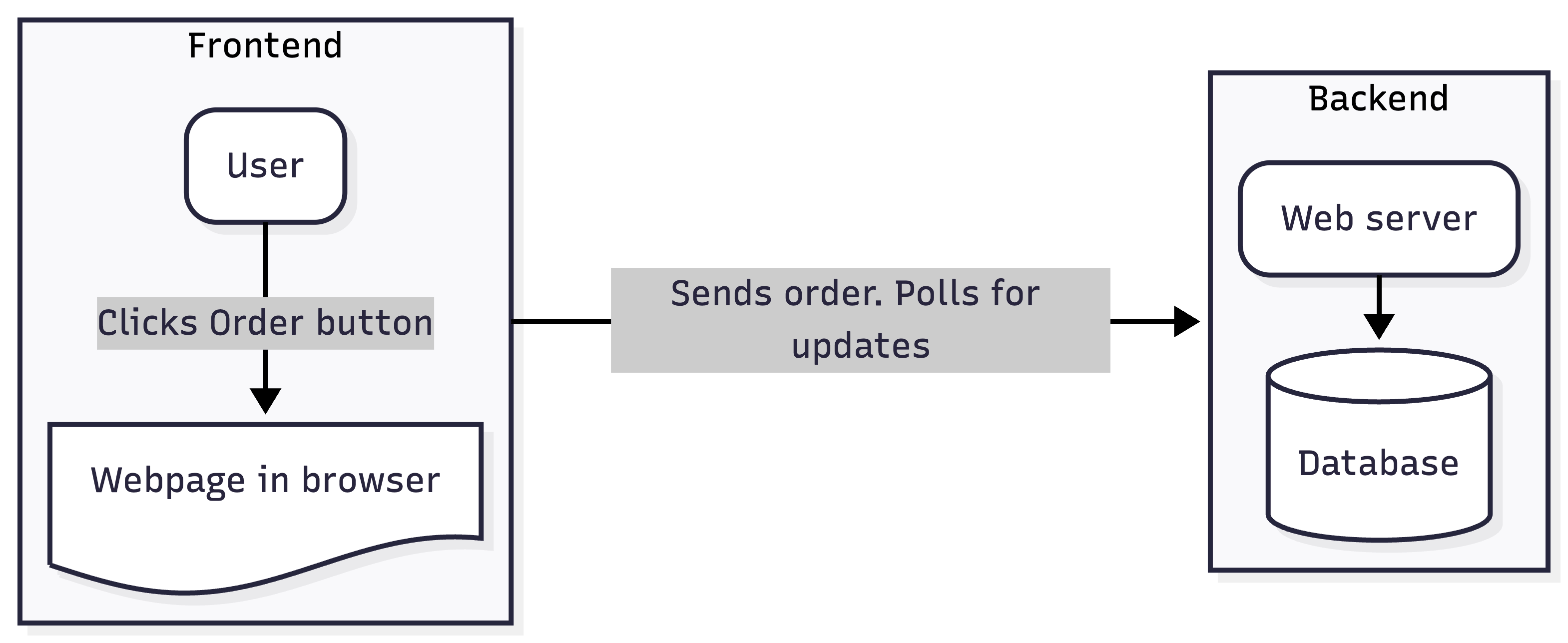
Let’s review how and why a microservice design works using a simple example. Imagine you have a website where a user can place an order for an item that needs to be made. The item could be anything from a physical 3D-printed object to a digital tax certificate.
You currently have a monolithic web server that handles the entire process and stores all data in one database. This is its design:
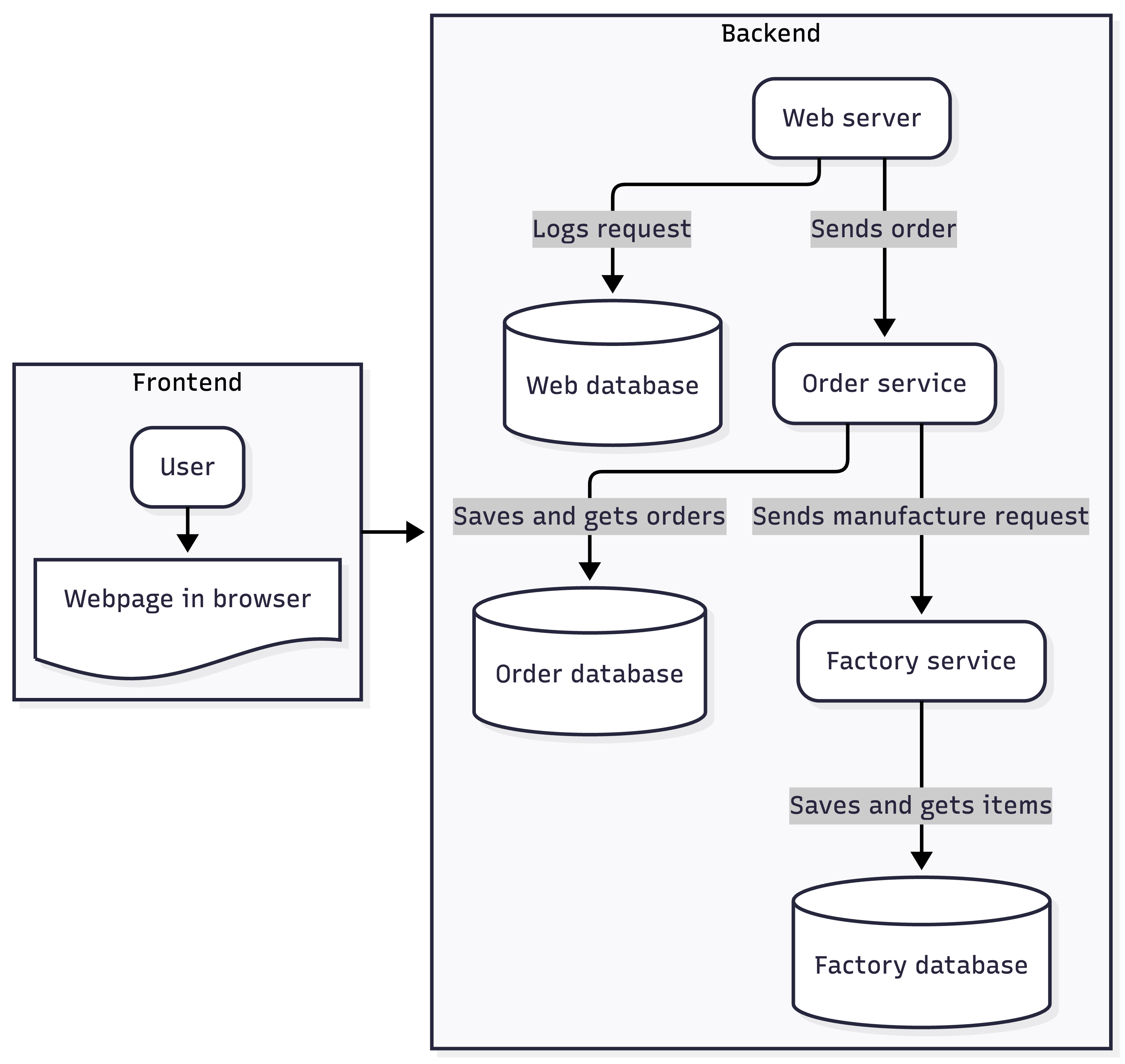
You have different teams working on the website, order management, and factory production of the items — and they each want to deploy improvements to their code and database tables independently, without breaking the rest of the system.
So you decide to separate your single service and database into three separate services (web, order, and factory). Your system now looks like this:
Each service knows the address (URL) of the other services. So if the order service wants the factory service to start making an item, the order service calls the factory service using an HTTP POST request.
Then the website team gets upset that the order service isn’t responding to orders fast enough, and is blocking the website from responding to user requests.
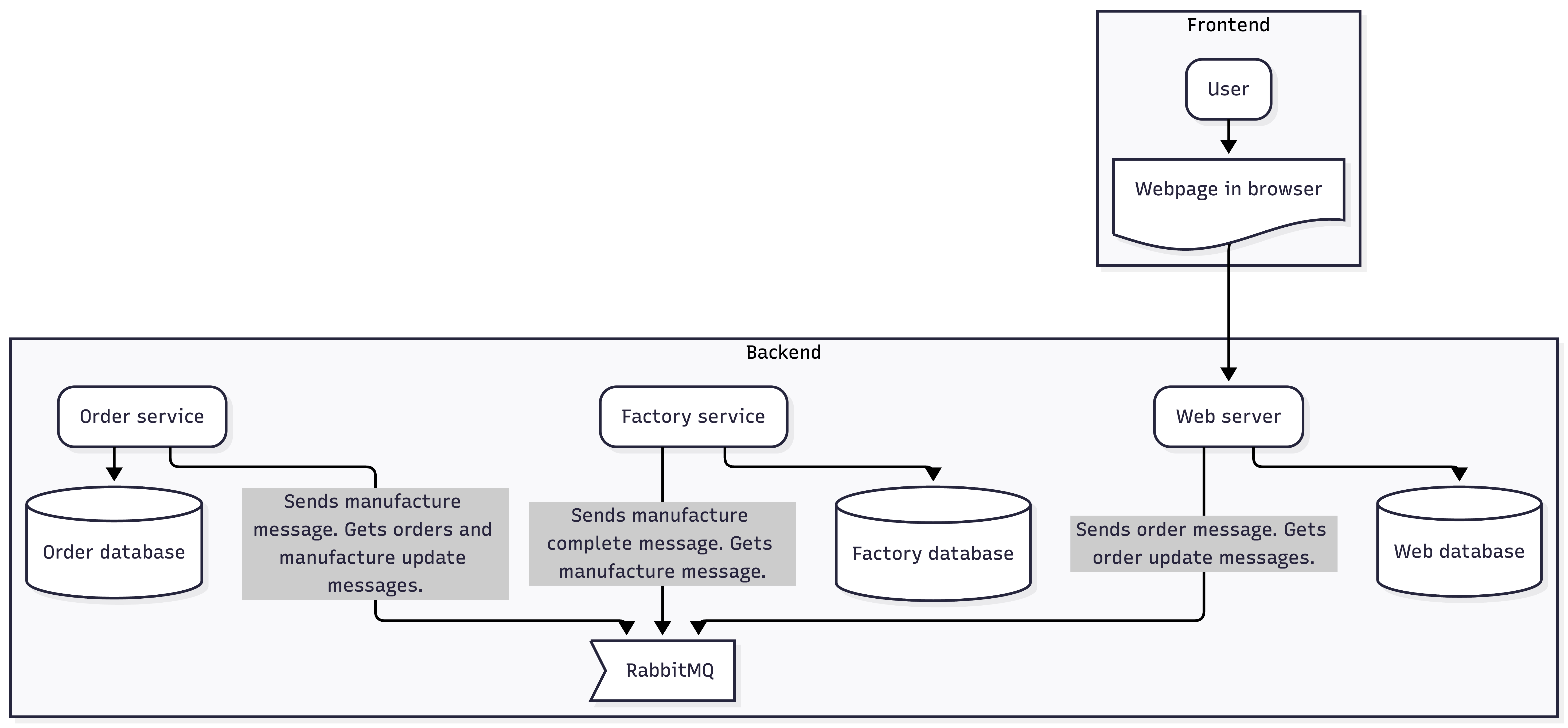
So instead of letting services call each other directly and synchronously, you decide to use a message queue, like RabbitMQ, for all communication. To demonstrate how a message queue works, consider an example: The web server places a “create order” message on the order service’s queue without waiting for a response. The order service takes the message off the queue when the service is ready, and puts a response message on the web service’s queue when the order is ready for collection. No service needs to know the address or status of any other service — each service talks only to RabbitMQ.
Your system now looks like this:
This design now meets the microservice architecture criteria. Each service is small and focused, independently deployable by having a separate database and a separate Git repository, and autonomous by using an asynchronous message queue.
Even more flexible designs
You can make the design even more flexible. For example, your factory and order teams realize they need to start additional instances of their services when the number of requests increases. So you might have three factory services running simultaneously, all taking orders from the queue and writing to the same shared factory database.
Then, you need a central repository of URLs for each system component, like the order database and RabbitMQ, so that each new service knows where to find everything as containers start and stop, and URLs and ports change. To support this service discovery, you might use a simple key-value store in a container, like etcd, or you might want something more powerful, like Consul, or even a container orchestrator like Kubernetes.
The example app
In the GitHub repository that comes with this guide, we’ve created a minimalist microservice app that runs the services discussed in the case study.
▶️ Clone, or download and unzip, the repository onto your computer.
There are two folders in the repository: withSentry and withoutSentry. This guide runs the withSentry app to demonstrate monitoring, but if you want to see an even simpler microservice design without any monitoring, you can look at the code in withoutSentry.
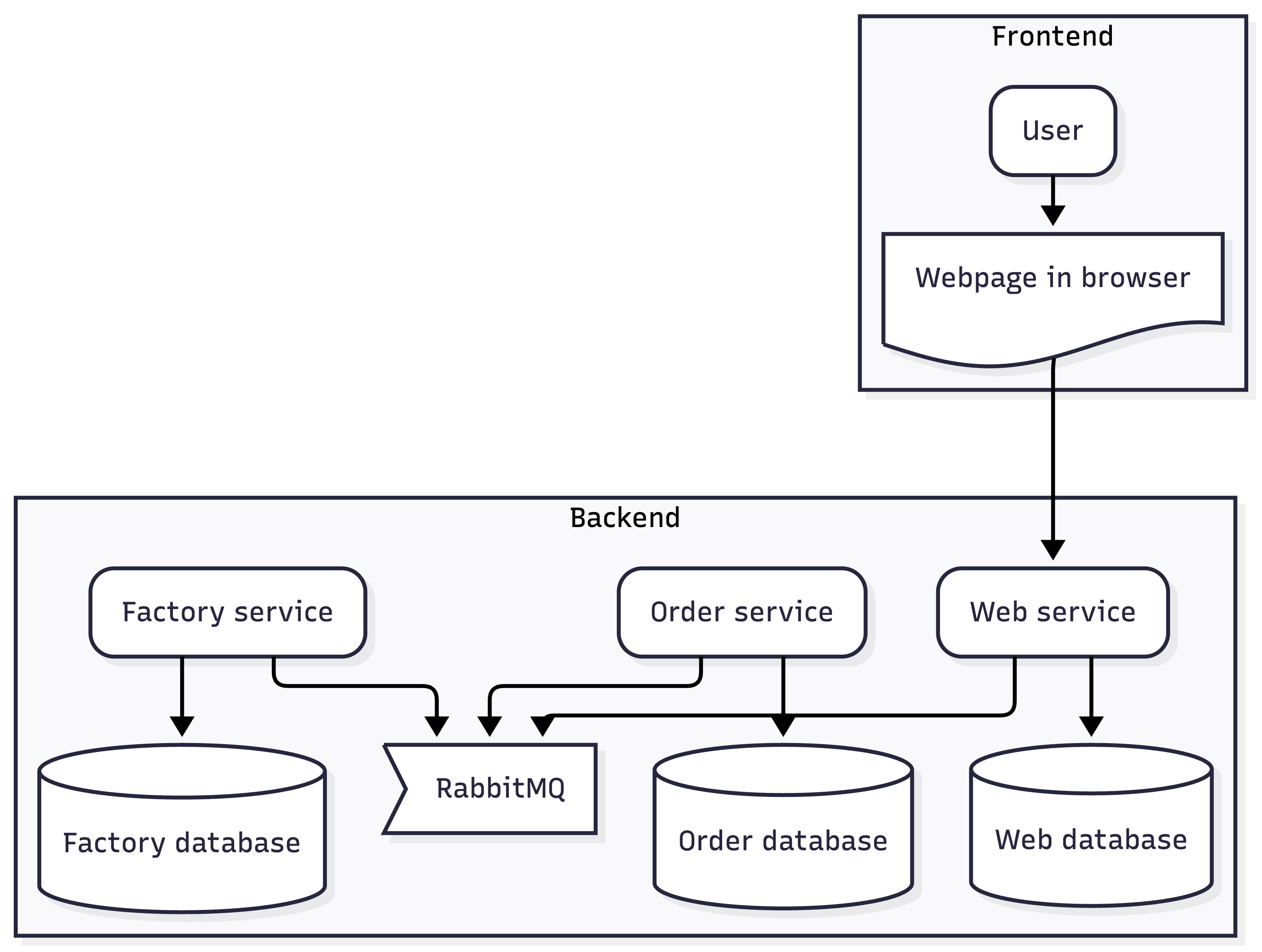
Below is a simplified diagram of the design used in both folders. Each component in the backend runs in a separate Docker container, configured by docker-compose.yaml. There are:
Three Node.js services (3_web.ts, 4_order.ts, 5_factory.ts)
Three MongoDB databases, which you can see at the top of the Docker Compose file (msWebDb, msOrderDb, and msFactoryDb)
The RabbitMQ software, which you can see in the middle of the Docker Compose file
Using Node.js and MongoDB keeps this demonstration project as simple as possible, as Node.js code doesn’t need compilation (like Go) and MongoDB doesn’t need table creation scripts (like PostgreSQL).
Configure the app to use Sentry Tracing
Now that you’ve downloaded the app, let’s configure it to send traces to Sentry.
▶️ Open the Sentry web interface and use the sidebar to navigate to Settings —> Projects.
▶️ Select the project you want to use for this test. If you have only a real production project available, first create a Node.js project for the demo app, then select it.
The sidebar contents will change to show the project details.
▶️ In the sidebar, navigate to Client Keys (DSN) and copy your DSN.
▶️ In your withSentry project directory, open the .env file and enter the copied DSN as the value of the SENTRY_DSN environment variable.
This setting instructs all services in the app to use your Sentry project. Docker Compose pulls the SENTRY_DSN value from .env and sends it to the containers that have the SENTRY_DSN environment variable.
▶️ In Sentry, navigate to Loader Script at the bottom of the sidebar and copy the script shown at the top of the page
▶️ Open withSentry/index.html and replace the script line near the top of the file (below <head>) with the copied loader script.
This setting links the app’s frontend webpage to your Sentry project. If you want to further configure an app, for example, to send only a fraction of traces to Sentry, refer to the Loader Script documentation.
Run the app
Configuration is complete. Now you can run the app and see traces arrive in Sentry.
▶️ Open a terminal (command prompt) in the withSentry folder, and run the following command:
docker compose up
If you run docker ps in another terminal, all containers should show as healthy after ten seconds to a couple of minutes. Docker image and npm package downloads might take a while.
IMAGE STATUS PORTS NAMESnode:24-alpine3.21 Up 6 minutes (healthy) 0.0.0.0:8006->8000/tcp, msWebnode:24-alpine3.21 Up 6 minutes (healthy) 0.0.0.0:8005->8000/tcp, msOrdernode:24-alpine3.21 Up 6 minutes (healthy) 0.0.0.0:8004->8000/tcp, msFactoryrabbitmq:4.1.4-alpine Up 6 minutes (healthy) 4369/tcp, 5671/tcp, msRabbitmongo:8.0.13 Up 6 minutes (healthy) 0.0.0.0:8000->27017/tcp, msFactoryDbmongo:8.0.13 Up 6 minutes (healthy) 0.0.0.0:8001->27017/tcp, msOrderDbmongo:8.0.13 Up 6 minutes (healthy) 0.0.0.0:8002->27017/tcp, msWebDb
Note: The container names start with ms, for microservice, to separate them clearly from any other containers you might run.
▶️ In your web browser, open the app at http://localhost:8006.
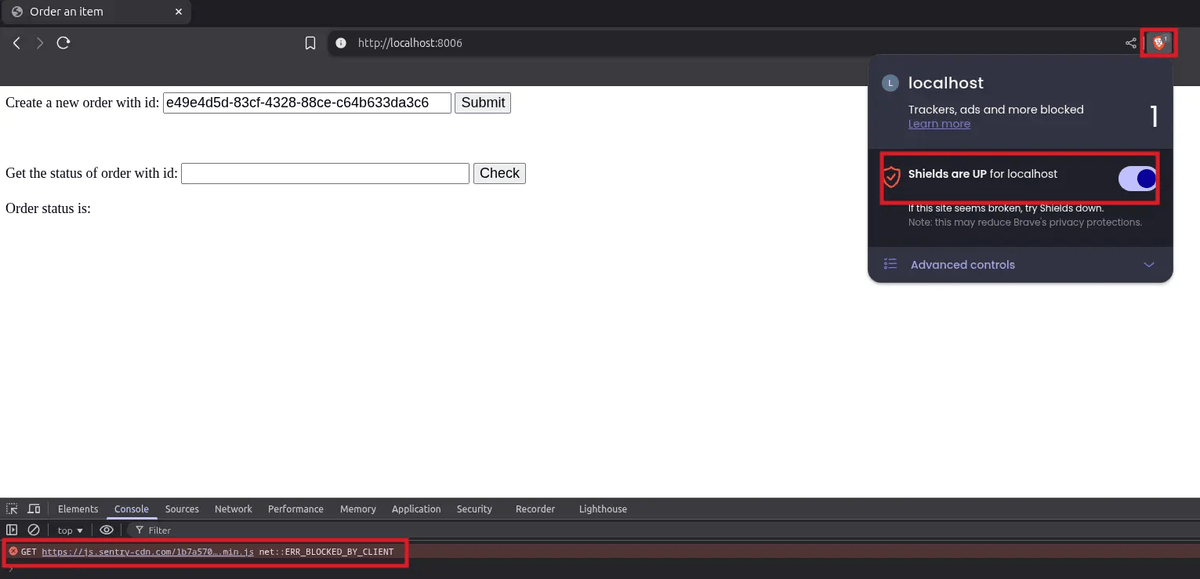
▶️ Disable any advertisement or tracker blockers and reload the page to ensure that Sentry is available.
Unblock Sentry
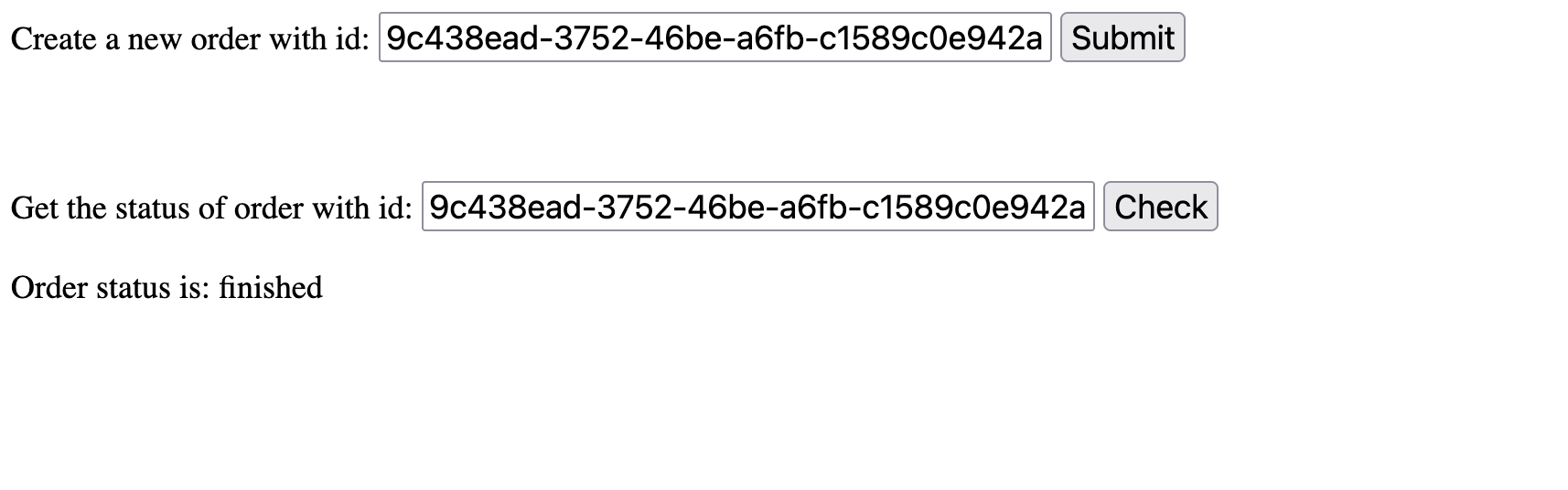
A new UUID is set in the Create order line whenever you refresh the page, but you can enter your own order name, like alice or 2.
▶️ Click Submit to start an order.
Notice the order ID is set in the Check order line, and the Order status updates with a single call to check on the web service.
▶️ Click Check repeatedly until the Order status changes to finished in about ten seconds.
The microservice website
Here’s what happened:
The webpage called the web service, which created the order in the web database.
The web service then sent the order ID to the order service via a message on RabbitMQ.
The order service then received, saved, and passed the order to the factory service.
The factory service received the order, waited five to ten seconds, then passed a message to RabbitMQ saying the item was made.
The order service passed the status update back to the web service.
By clicking the Check button, you requested the status of the order from the web service, which looked in the web database.
Let’s see if that process is clearly shown in Sentry.
▶️ Navigate to Explore —> Traces in the Sentry sidebar and ensure your test project is selected at the top of the traces page.
If you see traces, jump ahead to the next section on understanding tracing.
If you don’t see any traces after a minute, check for app configuration problems by following the troubleshooting instructions below. If it’s a new Sentry project, first skip through the steps in the Set up the Sentry SDK section using the Next button on each step and then, lastly, click the Take me to my trace button.
Troubleshooting
The application needs six free ports on your computer: 8000 to 8006. In the unlikely event that any other application uses them, you should stop that application.
▶️ Open a new terminal and run the code below to see the service logs.
up to date, audited 168 packages in 2s20 packages are looking for funding run `npm fund` for detailsfound 0 vulnerabilitiesExpress server is running on port 8000{ id: '1adbd9e4-0133-46c3-84f4-32b2dcf83ce2', status: 'create' }{ id: '1adbd9e4-0133-46c3-84f4-32b2dcf83ce2', status: 'making' }{ id: '1adbd9e4-0133-46c3-84f4-32b2dcf83ce2', status: 'finished' }up to date, audited 168 packages in 2s20 packages are looking for funding run `npm fund` for detailsfound 0 vulnerabilitiesExpress server is running on port 8000{ id: '1adbd9e4-0133-46c3-84f4-32b2dcf83ce2', status: 'create' }{ id: '1adbd9e4-0133-46c3-84f4-32b2dcf83ce2', status: 'finished' }up to date, audited 168 packages in 2s20 packages are looking for funding run `npm fund` for detailsfound 0 vulnerabilitiesExpress server is running on port 8000{ id: '1adbd9e4-0133-46c3-84f4-32b2dcf83ce2', status: 'create' }'finished 1adbd9e4-0133-46c3-84f4-32b2dcf83ce2'
If you notice any errors, fix them first, before trying to see traces on Sentry. The most likely problem is that your project DSN in the .env file doesn’t match the one in Sentry. Otherwise, it’s likely that npm couldn’t connect to the internet to download packages – in which case, try disabling any firewalls or VPNs temporarily and restarting Docker in the project folder with this command:
docker compose down; docker compose up
You can also check the contents of the databases using the commands below:
docker exec msWebDb sh -c 'mongosh db --eval "db.getCollection(\"order\").find().forEach(printjson);"'# {# _id: ObjectId('68cc0cfd4a5fbb81cf8c3b92'),# id: 'b42079c4-b40d-4067-8d46-54545de01d28',# status: 'finished'# }docker exec msOrderDb sh -c 'mongosh db --eval "db.getCollection(\"order\").find().forEach(printjson);"'# {# _id: ObjectId('68cc0cfd466ea6c8f2d77902'),# id: 'b42079c4-b40d-4067-8d46-54545de01d28',# status: 'finished'# }docker exec msFactoryDb sh -c 'mongosh db --eval "db.getCollection(\"item\").find().forEach(printjson);"'# {# _id: ObjectId('68cc0cfd818003ed3fdf1001'),# id: 'b42079c4-b40d-4067-8d46-54545de01d28',# status: 'finished'# }
Understand Sentry Tracing and Logs
▶️ At the bottom of the Traces page, click any of the span IDs.
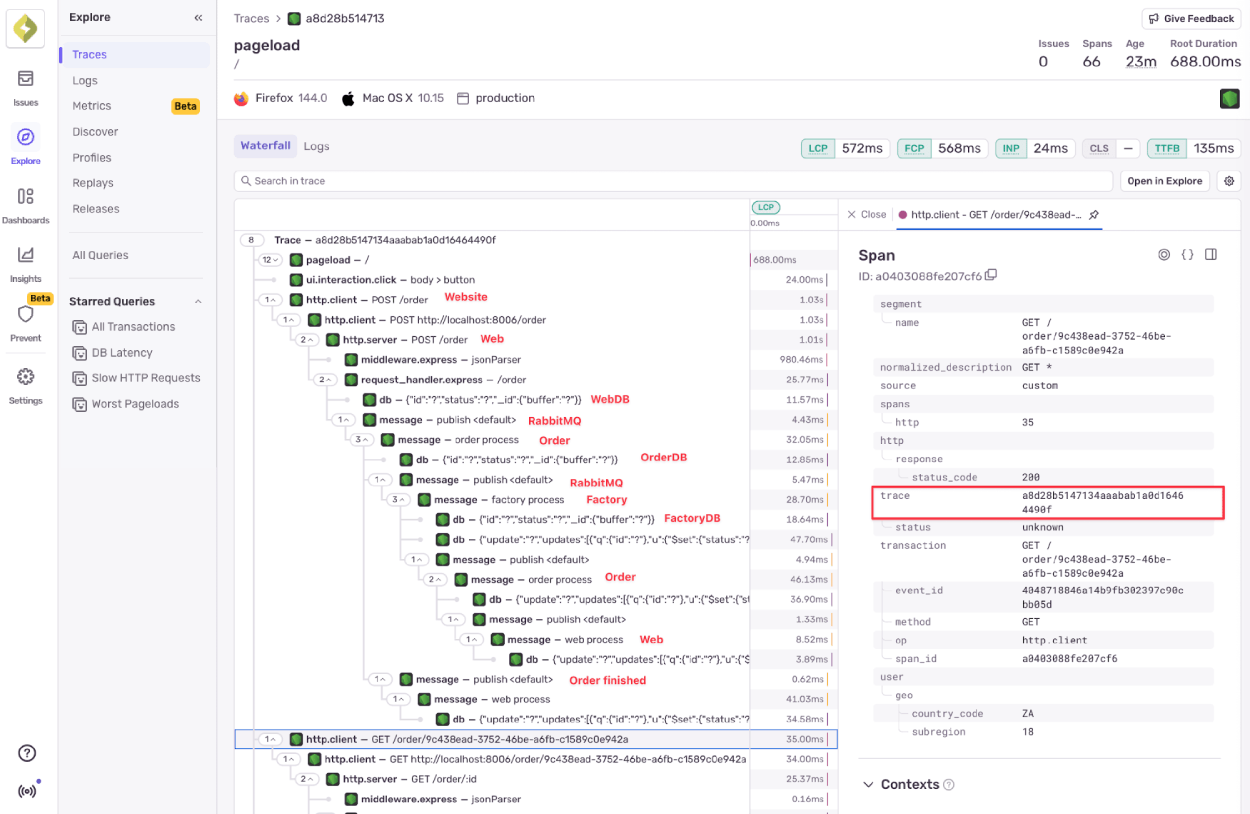
You should see a trace similar to the one below. Each trace represents a connected series of operations and actions, and is made up of spans. There are red annotations to show you which span corresponds to which service.
Distributed trace
This is the moment distributed tracing pays off: every service call shows up in one place. Sentry passes the trace ID with every call made by a service, and so can follow the flow of service and database calls (even through RabbitMQ messages) from the website all the way down to the factory and back again. You can see this flow by reading down the call stack on the left of the page.
The span from the webpage shows everything from the page load to individual button clicks. While RabbitMQ itself isn’t instrumented with Sentry, the JavaScript that calls it is, so you can see all messages sent to and received from RabbitMQ. Similarly, MongoDB isn’t instrumented with Sentry, but calls to it are.
If you look at a database call, you can see that the parameters aren’t recorded. For example:
This is called query scrubbing. Sentry uses it to prevent sensitive data, like credit card numbers or password hashes, from being recorded. If you need the exact query details, Sentry Logs can capture them instead.
So what is this trace useful for?
First, it shows whether the system is behaving as expected. You can see if the control flow is correct, whether messages are duplicated, or if failures or database writes are missing.
Once the logic looks right, you can look at performance. How long does the full order take? Are there slow or inconsistent requests? Which service is responsible?
And when a user has a question, you can find the trace for their order ID and see exactly what happened.
In the example above, the flow jumps back out of the indentation near the bottom. That’s when the factory waits a few seconds to “manufacture” the item before sending a new message to the queue:
Real systems don’t respond in seconds. Updates often arrive long after the original trace ends. The way to connect them is with a shared identifier.
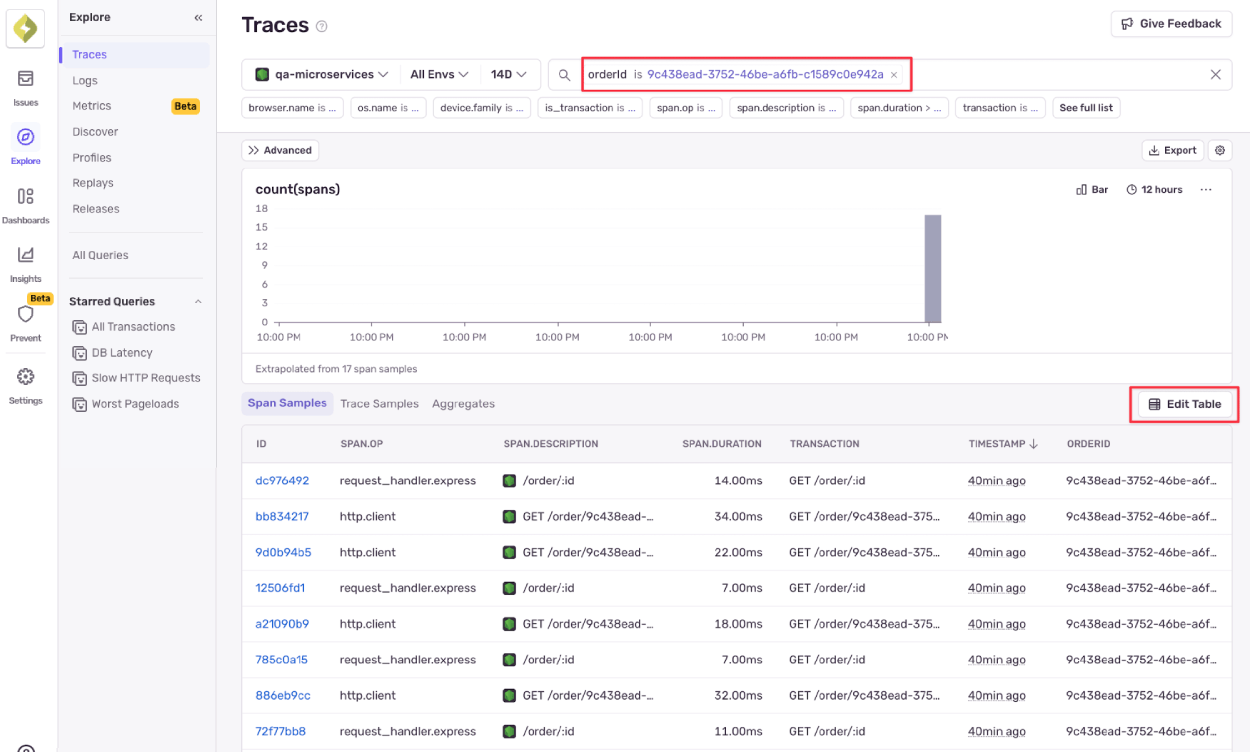
Here, that identifier is the order ID. Because it’s attached to spans across services, you can search for it in Sentry and see the entire lifecycle in one place.
▶️ Copy your order ID from the textbox on the app webpage to the filter in the Sentry Traces page, as shown below. (You cannot type is in the filter textbox. You have to first type orderId, then click for more options.)
Tracing an order ID
Click the Edit Table button on the right to include any attributes you’re curious about in the filter results.
Logs
This article focuses on distributed tracing, but Sentry also supports standard monitoring tasks like capturing errors and exceptions with Sentry.captureException(e).
Because an exception stack trace doesn’t include cross-service context, it’s important to attach an identifier — like orderId — before capturing the error. One way to do that is with a breadcrumb.
A breadcrumb is lightweight context that’s recorded locally and only sent to Sentry if an event, such as an error, occurs. For example, when the factory starts creating an item, you might add:
If that function later throws an error and you capture it, the breadcrumb appears alongside the stack trace in Sentry.
Structured logs are similar, but more powerful. Instead of a single text message, they record key-value pairs, which makes filtering and searching easier in the dashboard. Unlike breadcrumbs, structured logs are sent immediately and aren’t tied to an error.
The microservices example uses logs alongside traces to provide this additional context.
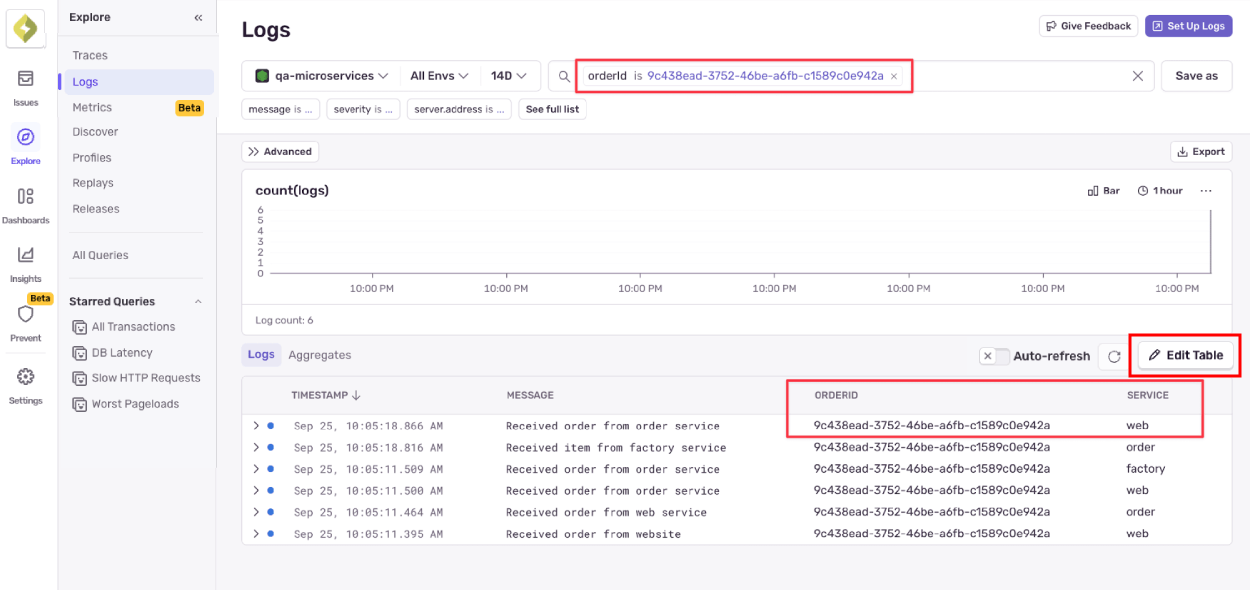
▶️ In the Sentry sidebar, navigate to Explore —> Logs.
Distributed logs
In the screenshot above, the table includes two attributes added to the structured log: orderId and service. You can see each service logging when it receives a message from RabbitMQ.
In this simplified example, traces and logs look similar because both show the flow of an order through the system. In a real application, they serve different purposes.
Traces show how execution moves between components. Logs let you record whatever context you need inside your own business logic. You can add logs at specific steps, adjust them temporarily while debugging, and remove them when you’re done.
Logs also support severity levels (trace, debug, info, warn, error, and fatal) which makes them useful across development, testing, and production environments. Read the guide to setting up logs in Node.js to learn more.
How to monitor a distributed app with Sentry
Now that you’ve seen what monitoring looks like in Sentry, let’s add it to your app. The examples in this section work in any Node.js application, not just microservices. From Sentry’s point of view, there’s no difference, and the same ideas apply in other languages like Python or .NET. Only the syntax changes.
Monitor a webpage
The loader script import you added to index.html in the configuration section is all you need to start automatic monitoring of any webpage. It looked like this (remember to change [YOUR_ID]):
▶️ If you need to configure Sentry differently from the defaults in this script, add a Sentry.init() call to create a custom configuration.
You can set your DSN inside the init function instead of hardcoding it into the script import URL above. You don’t have to hide your DSN from the public, as cases of abuse are very rare and Sentry can handle them.
The startSpan() function manually creates a span that records any call made within it. In this case, it records a call to fetch('http://localhost:8006/order'). Only the name parameter is mandatory, but the code includes the order ID as an attribute, and later adds the response status code as an attribute too, after the call completes.
A single configuration file is all you need for Sentry to automatically monitor your service. However, if you want to add custom attributes, like orderId, across services and to use logging, you need to import the Sentry library in your code and add some manual instrumentation too.
▶️ Import Sentry using the following line:
import * as sentry from '@sentry/node';
▶️ To send a log entry, you can use a single line:
sentry.logger.info("Received order from order service", { 'orderId': order.id, 'service': 'web' });
This call has a text message, and two attributes sent as JSON.
▶️ To add an attribute to a span, use the following code:
This line adds an attribute to the span created by Sentry’s automatic instrumentation.
If you examine all the spans in the trace in the Sentry website, you may notice that some spans don’t have order ID attributes. If you need an ID attribute and Sentry hasn’t automatically created a span for you to attach to, you need to create a span manually using startSpan(), as the website code does.
Tips for monitoring microservices and distributed systems
Here’s the short version:
Sentry automatically creates spans for most operations without manual instrumentation.
To add logs or custom attributes, you’ll need to instrument those explicitly.
For tools without built-in integrations (like some message queues or databases), you’ll need to enable integrations or add manual instrumentation.
Because distributed systems don’t have a single call stack, you need a shared identifier, like orderId, to link asynchronous work across services. UUIDs work well, as long as they’re easy to search for later.
Monitoring also looks different once services are independent. In this guide, all traces go to a single Sentry project. In practice, teams often use separate projects so they can own their own alerts, data, and workflows. This improves separation of concerns but adds operational complexity. Administrators can still investigate traces across projects when needed.
That independence means teams also need to agree on shared conventions. Centralized configuration and consistent message formats make it much easier to follow a request across services when something breaks.
Finally, microservices generate a lot of traffic. Start with a low trace sampling rate, around 10%, to understand system behavior without overwhelming yourself. As your application scales, keep an eye on service load and request latency so you know when it’s time to scale up.
The all-or-nothing sendDefaultPii boolean is going away. dataCollection replaces it with a dial for each category of data, so you can keep the headers you debug with and drop the values you would rather not store.
A full roundup of everything that shipped for Sentry Logs this summer — log pinning, overhauled exports, chart enhancements, terabyte-scale search, and a pile of usability fixes.
A stack trace tells you where your game died, not why. Session Replay for the Sentry Unreal Engine SDK attaches the last few seconds of gameplay to every crash report so you can watch what actually happened.