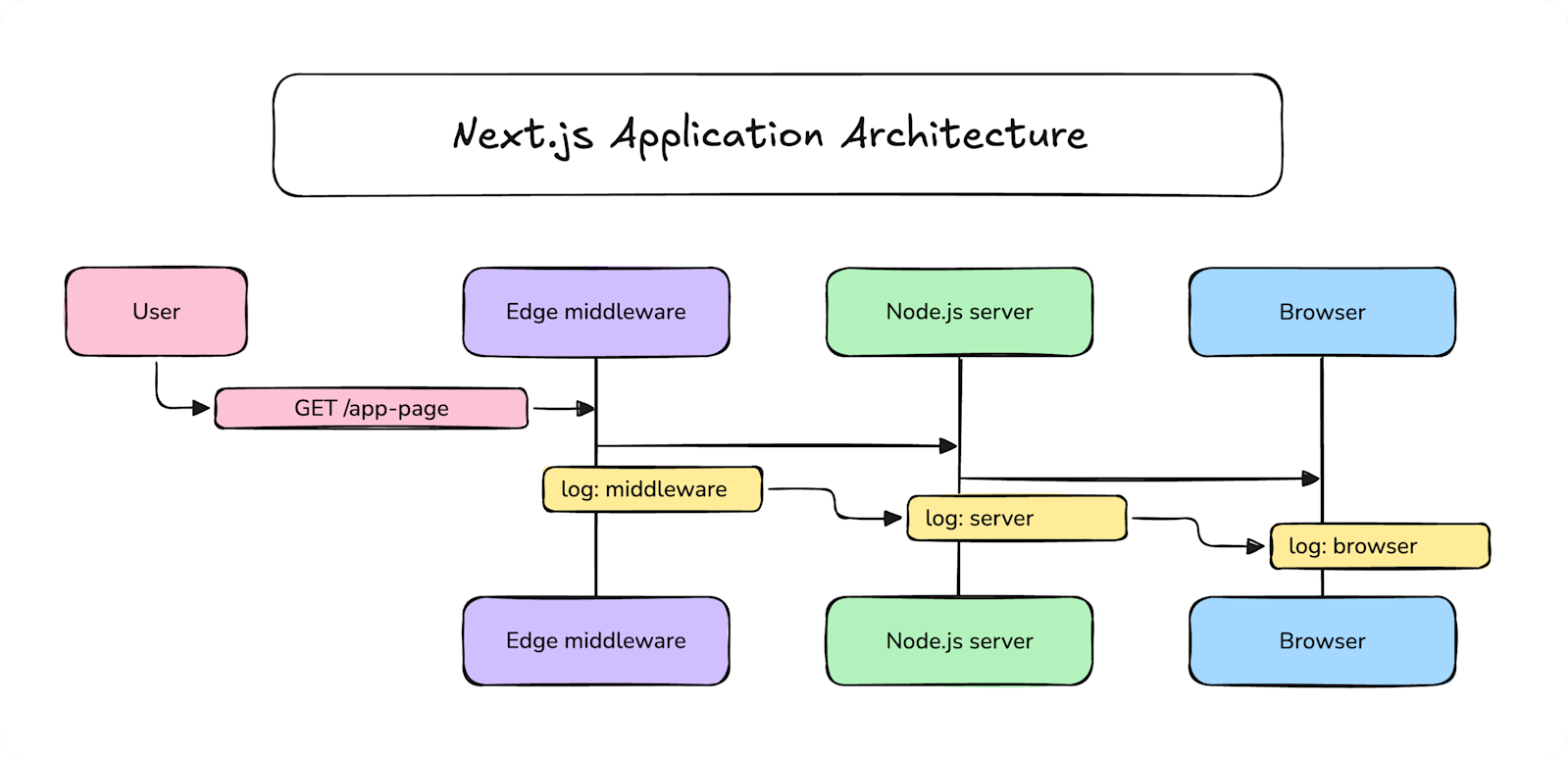
A typical Next.js deployment can execute code in up to three different runtimes: Edge, Node.js, and the browser.
You may already be capturing logs from server-side code, but if you are not capturing the full request from middleware through server rendering to the browser, you are missing critical debugging information when problems arise.
TL;DR: A typical Next.js deployment can run in up to three environments: Node, Edge, and the browser. Most JavaScript logging libraries target Node; far fewer are compatible with Edge and the browser. LogTape and Sentry both provide runtime-agnostic logging in JavaScript.
Why logging in Next.js is hard
Problem 1: Most Loggers Assume Node.js
Most loggers were built specifically for Node.js, relying on APIs like AsyncLocalStorage or fs that aren’t available in the browser or Edge runtimes.
You’ll often see Pino (or wrappers such as Next-Logger) suggested as the best logger for Next.js, but neither is actually a good choice for Next.js.
Pino, and by extension Next-Logger, is designed for Node.js, and uses a polyfill to work in the browser. But that polyfill means surrendering the performance benefits the library has in Node, and you still cannot capture logs in Edge functions or middleware (running on Edge).
Problem 2: Missing out on client-side logging
It’s easy to assume you don’t even need to capture client-side logs, because your “frontend code” is all server-side.
By default, Next.js uses Server Components for all pages and components. So by default, any logs emitted from your “frontend code” will actually be captured in your server-side logs.
However, once you add a use client boundary for interactive components, that code will be executed in the browser.
Your “frontend code” is really a mix of Server and Client Components that work together to render a single page and log to two different places.
We have to solve that fragmentation and make sure all frontend code, no matter where it runs, is captured and logged to the same place.
Problem 3: Trace-connected structured logging
Logging is only one part of observability; on its own, it is most useful when you are debugging locally. In production, once you’re collecting logs from dozens, hundreds, or even thousands of requests, you need a way to tie related logs together for querying and aggregation.
Tracing adds a unique ID to each request in your app and appends that ID as structured data to every log you send. Then later, you can query logs based on that ID to find every related log from that same request, along with other telemetry in your monitoring platform, such as errors in Sentry.
Adding tracing to Next.js is actually easy, but it is still a step you have to take, and there are several ways to do it.
We’re going to pair a JavaScript logging library with Sentry to instrument Next.js with trace-connected logs. In a future post, we’ll cover and compare another way to instrument Next.js with tracing, using OpenTelemetry.
What to look for in a Next.js logger
What should that logger do? I recently compared all of the current popular JavaScript logging libraries and broke down why you should be using a logging library in the first place. The same holds mostly true for Next.js, but we need to be even more specific.
When evaluating a logging solution for Next.js, consider:
Runtime Match: Needs to run on Node, Browser, and Edge runtimes (if using Edge).
Tracing Support: Next.js apps are multi-service by default. Tracing connects logs from multiple sources under a single trace.
Production Features: Filtering for data redaction and noise reduction; context management and child loggers to improve structured logging and make later querying and aggregation easier.
As you might expect, feature-wise, libraries have been coalescing and imitating one another’s good practices, to the point where they have become similar.
Still, the biggest difference to keep an eye out for is runtime support and performance.
There are two practical fits that cover the full scope of a Next.js app, and they are not mutually exclusive:
Mentioned in my other post, LogTape is one of the newest libraries on the scene and is quickly becoming a favorite dedicated logging library. It’s built from the ground up with no dependencies and runs natively in all JavaScript runtimes.
LogTape’s context management and categories are especially useful for tagging and organizing your logs for more efficient querying later.
Each logger you define can be filtered in Sentry (for example category: next-app.client) to fetch only the logs from a particular category.
Explicit context in a client component
You can also add contexts to loggers to automatically append data:
"use client";import { useEffect, useMemo } from "react";import { getLogger } from "@logtape/logtape";const logger = getLogger(["next-app", "client"]);export function OrderConfirmation({ orderId }: { orderId: string }) { // Automatically includes the orderId in all future logs from this component const ctx = useMemo(() => logger.with({ orderId }), [orderId]); useEffect(() => { const fromQuery = new URLSearchParams(window.location.search).get("orderId"); if (fromQuery && fromQuery !== orderId) { ctx.with({ fromQuery }).warn( "Confirmation orderId {orderId} does not match URL query {fromQuery}; check redirects and rewrites.", ); } }, [orderId, ctx]); return <p>Thanks for your order.</p>;}
You can read the full Structured Logging with LogTape post to get a deeper look at best practices for structured logging with LogTape and Sentry.
Sentry Next.js SDK
But, you might not need an additional logging library at all.
Sentry’s Next.js SDK includes Sentry Logs, a logging library built into Sentry’s SDKs for multiple platforms, not just JavaScript.
Sentry’s Logger for Next.js is also runtime-agnostic, providing logging everywhere your Next.js app can run. And if you are already using Sentry, or plan to use Sentry for capturing errors and tracing anyway, you can add logging without adding any new dependencies.
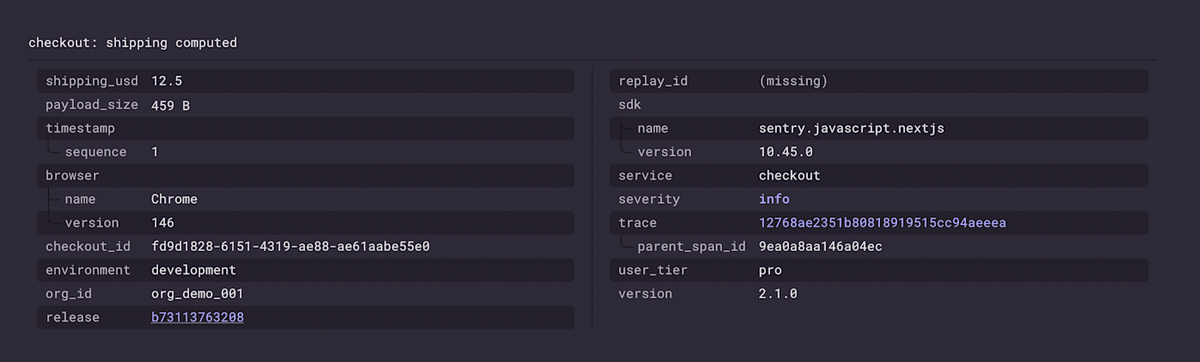
In the Sentry Log Explorer, opening the checkout: shipping computed entry shows the fields passed to that log call (shipping_usd at 12.5) and the merged attributes applied to the same scope up till that point (service, version, org_id, user_tier and checkout_id).
Getting trace-connected logs end to end
Finally, we want more than just messages from our logs. We want structured data with useful debugging information. When we see a log, we want to know where it came from, what triggered it, and what else happened as a part of that request.
Tracing monitors the execution and timing of requests throughout an app. If there is a function or service that ends up causing slowdowns or even errors for users of the app, tracing data is how we collect information and ultimately discover the problem.
When we configure Sentry, every request will be assigned a unique “Trace ID” that will link all data connected to that request together.
Use Sentry’s setup wizard to automatically instrument your Next.js app with tracing and logs.
npx @sentry/wizard@latest -i nextjs
You should end up with three files similar to the following.
import * as Sentry from "@sentry/nextjs";Sentry.init({ dsn: process.env.SENTRY_DSN, tracesSampleRate: process.env.NODE_ENV === "development" ? 1.0 : 0.1, enableLogs: true,});
They’ll be named instrumentation-client.ts, sentry.server.config.ts, and sentry.edge.config.ts. One entry point per runtime.
Then use Sentry.logger as above, or integrate with an existing logger, like LogTape.
If your app was already instrumented with console.log, you should try to upgrade to structured logging, but you can still forward console output to Sentry with the consoleLoggingIntegration.
That’s all you need to do. Every request will now contain a trace ID that will follow through the entire app, across runtimes, allowing you to query for all of the logs and traces related to that request.
Querying the logs
With logs throughout the application and connected with a trace ID, you can start querying for logs for debugging, custom dashboards, alerts, and more.
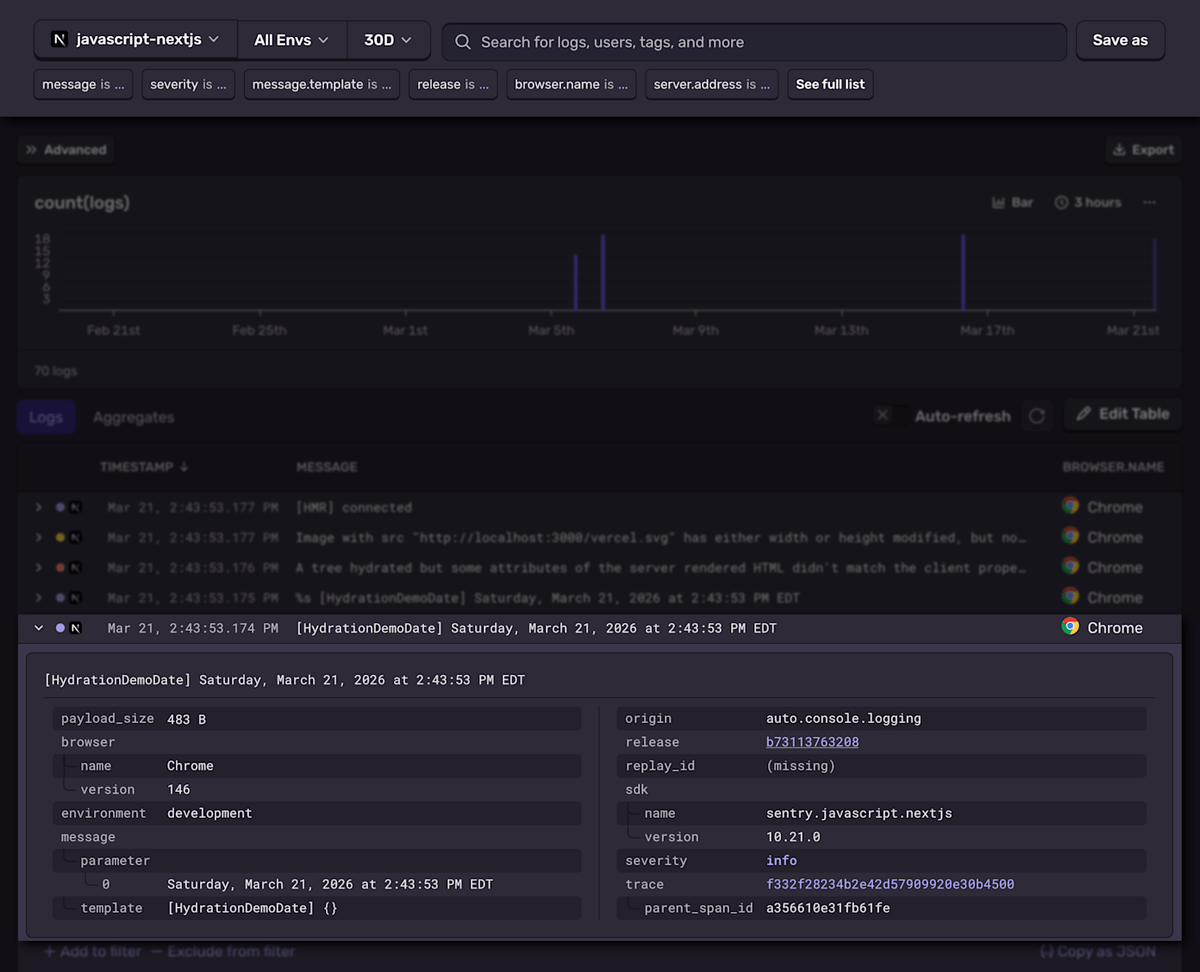
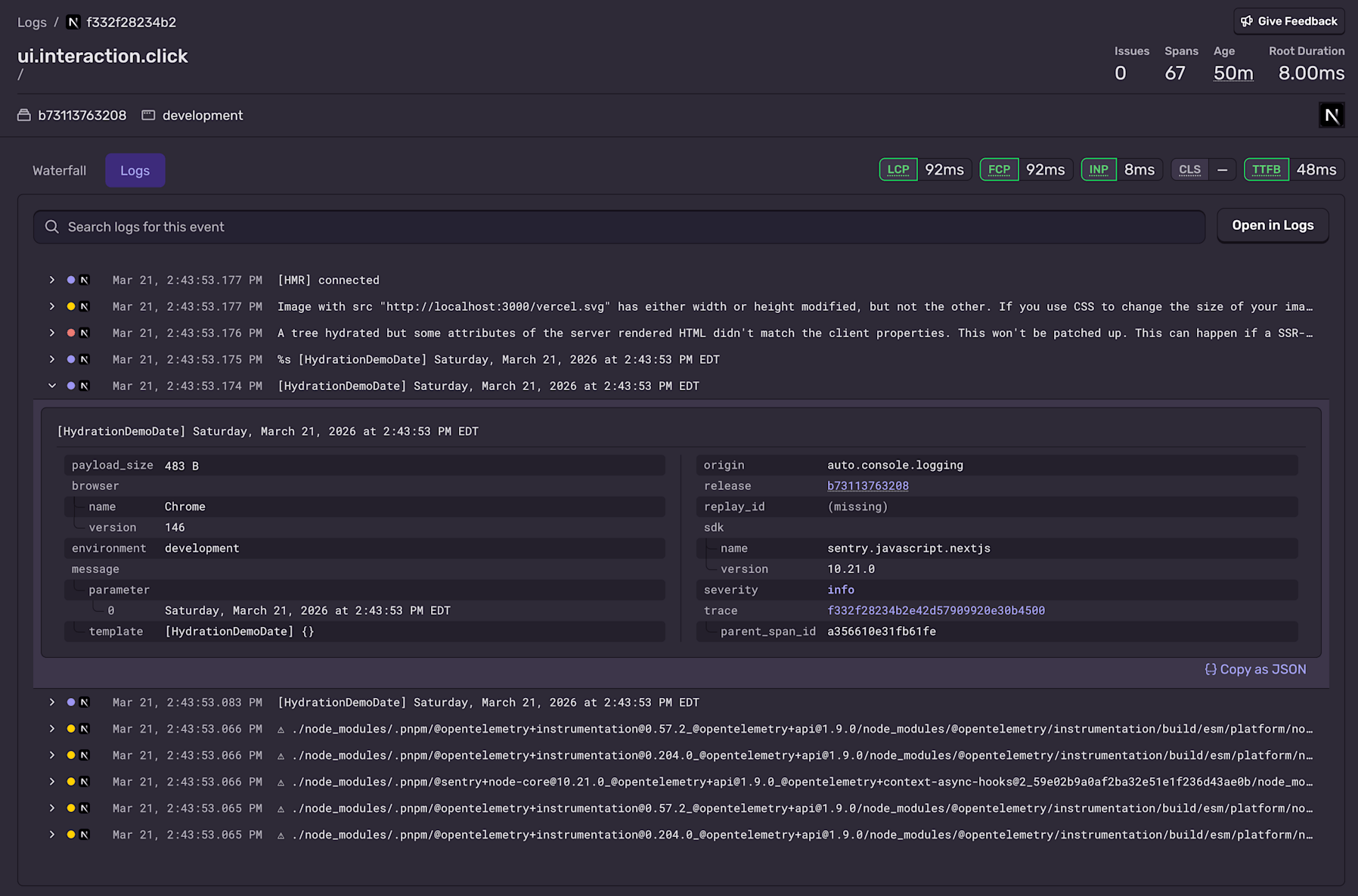
In Explore > Logs you can search for logs based on any of the structured data properties.
Sentry will automatically inject several useful attributes, like the environment, which is showing us this was from the development server. In this log, there was also browser attribute present which was automatically applied and shows us that this request came from Chrome. You’ll also notice the Chrome icon on the right. Server-side logs won’t contain either of these.
If we wanted to filter the logs down to include only the logs from the browser, we could search has: browser or browser.name: Chrome if we wanted to see a specific browser.
It’s not uncommon to add a service or component attribute to logs, to make it more clear where a log was emitted from. You can use scopes with the Sentry logger or categories with LogTape to broadly append a queryable attribute like this to all logs in a stack.
Read my post about structured logging to get a better idea about the type of data you might want to append to your logs.
Every attribute shown here, including any additional data you append to the logs, is queryable. To see the other logs that were a part of this same request, we just need to click on the trace ID.
Next steps
Setting up a logger that captures the full surface area of your Next.js app is the first major step, but how you instrument your logs, and make use of that data is what really matters.
Implement structured logs with a lot of high cardinality data.
Add contextual data, like the name of the service or component that triggered the log.
With structured logs, packed with useful high-cardinality data to query, you (or your LLM) will be able to quickly debug new issues, as they come in. You can write queries yourself, and configure dashboards to visualize aggregate data. To go further, see how to build a dashboard and alerts from custom metrics in Next.js.
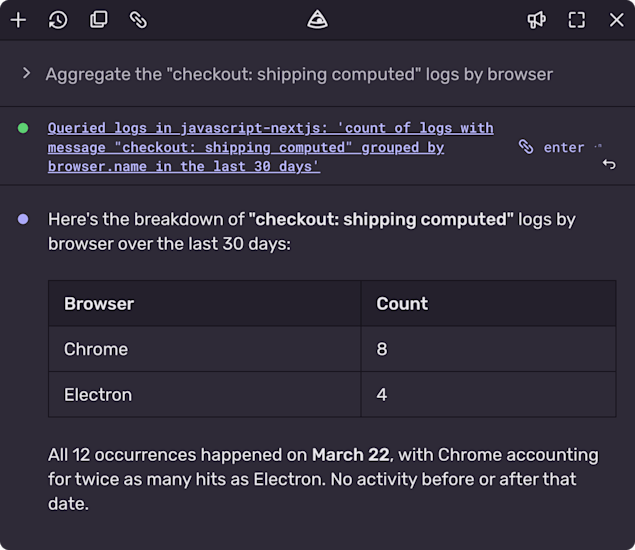
Try using Sentry’s Seer AI to query logs with natural language. You can use the Sentry MCP server, or click the “Ask Seer” button on the log explorer page. Rolling out now, you can even ask Seer to create custom dashboard widgets for you from your log data, or other data you might correlate with logs.
Add logs now, cover all of your surfaces, and tomorrow’s bugs will be much more approachable.
FAQs
Why do I see the same log twice from a client component? ▾
With the App Router, a use client component is still rendered on the server to produce the initial HTML, then it runs again in the browser during hydration, so a log in the component body can appear twice. For lines that should only run in the browser, put them in useEffect, or guard with typeof window !== 'undefined' if you truly need render-time logging. In development, React Strict Mode can also double-invoke some effects, which may duplicate useEffect logs even when SSR is not the cause.
How do I tie middleware, server, and client logs to one request? ▾
You need one correlation ID (typically a trace ID) that is created for the request and attached to every log from Edge, Node, and the browser. That is what trace-connected structured logging is about, and what the Sentry setup gives you when you initialize sentry.edge.config.ts, sentry.server.config.ts, and instrumentation-client.ts: a single trace per request across runtimes. Letting your observability stack propagate that ID beats hand-threading headers and logger fields in every file.
What about Pino or Next-Logger? ▾
They are built for Node and do not cover Edge middleware or functions out of the box. They can still be a good fit for Node-only surfaces (dedicated APIs, workers, scripts) if you never log from Edge. If middleware, Edge routes, and the browser must share one tracing and logging story, use a universal-runtime logger or Sentry.logger.
The all-or-nothing sendDefaultPii boolean is going away. dataCollection replaces it with a dial for each category of data, so you can keep the headers you debug with and drop the values you would rather not store.
A full roundup of everything that shipped for Sentry Logs this summer — log pinning, overhauled exports, chart enhancements, terabyte-scale search, and a pile of usability fixes.
A stack trace tells you where your game died, not why. Session Replay for the Sentry Unreal Engine SDK attaches the last few seconds of gameplay to every crash report so you can watch what actually happened.